

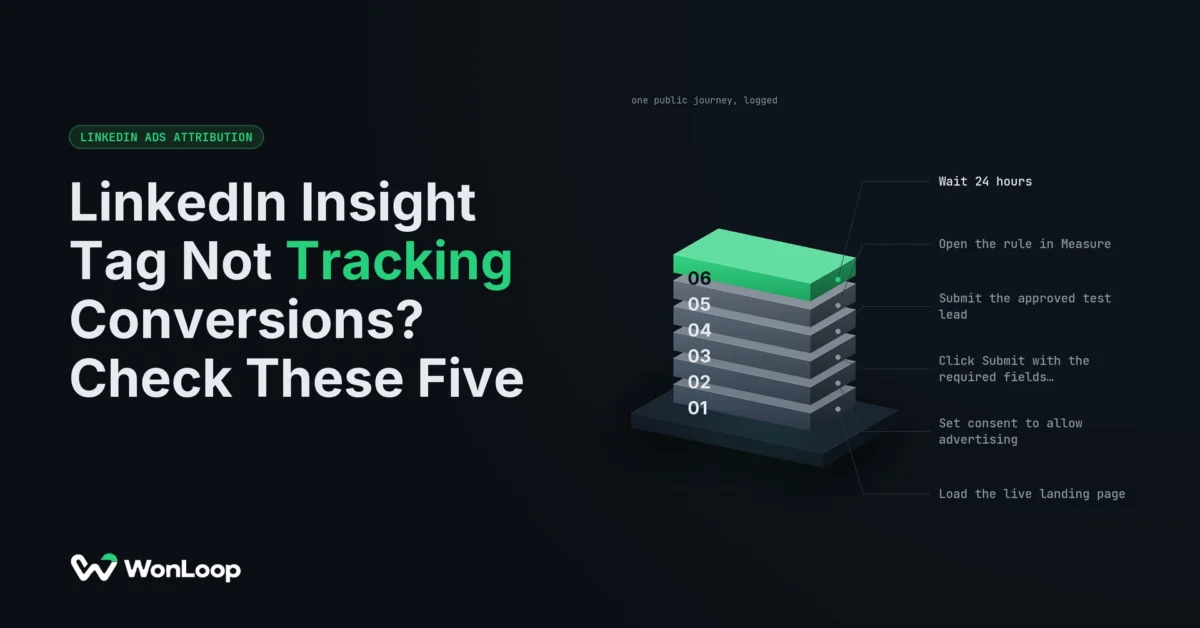
LinkedIn Insight Tag Not Tracking Conversions? Check These Five
An Active tag only proves a page loaded. Check the published container, consent, a trigger that fires on success, and the rule's campaign list, in that order.
Campaign Manager says the Insight Tag is Active. The demo-request conversion next to it says 0, and has said 0 for 11 days. That is the usual shape of a LinkedIn Insight Tag not tracking conversions. The tag works. Something between the tag and the report does not. Four different things can each read as “tracking”: a base tag loading on a page, a conversion request leaving the browser, LinkedIn receiving it for the right rule, and a campaign getting credit for it. Find the one that broke before you install anything else.
Installing a second tag is the most common reaction, and the worst one. It adds a second sender, can double-count the actions that do work, and leaves the broken one broken.
A green tag tells you a page loaded. It tells you nothing about whether anyone asked for a demo.
This guide covers the browser-side Insight Tag only. Native Lead Gen Forms and CRM events sent from a server fail in other ways and need other checks.
LinkedIn Insight Tag not tracking conversions: what the status actually says
Go to Measure → Conversion tracking in Campaign Manager. Skip the tag row. Open the conversion you care about and read three fields: Status, data source and the rule name.
LinkedIn’s conversion status help page gives the status a strict meaning. Active means a signal arrived in the past 3 days. No recent activity means the last one came 4 to 7 days ago. Inactive means more than 7 days. On an Insight Tag conversion, Unverified means LinkedIn has seen no activity from the website at all for that rule.
Those are clocks. They measure how recently a signal landed. They say nothing about what the signal meant, how many real people sent it, or whether any of them reached your CRM.
Read them against real traffic. A demo form that gets 3 requests in 30 days will sit on Inactive for a week at a time with nothing broken. Count the real submissions in your CRM for the same days before you call it a fault.
Then write down four things: conversion name, source, last signal, and the action it is meant to count. “The tag is green” closes no tickets.
Is the published container the one you tested?
Open the landing page your ad actually sends people to. The public URL, with the real query string. View the source or use the Tag Assistant panel and read the Google Tag Manager container ID it loads. Compare it with the container you have been editing.
A perfect fix in the wrong container changes nothing for visitors. A fix left in an unpublished workspace works in Preview and nowhere else. GTM Preview runs your draft in your browser. Your visitors get the last published version.
The TAGGRS Insight Tag install guide walks through the Partner ID, the LinkedIn Insight Tag 2.0 template, Preview and the publish step. Use it as a setup checklist. A clean install says the tag loads. It says nothing yet about the conversion.
Next, check the Partner ID matches the ad account that runs the campaigns. Then look for other installs: a CMS plugin, a theme setting or a second GTM container. Write down what each one sends before you turn any of them off. Two owners of one tag make every later test harder to read.
Test outside Preview, on the live site. Log the container version and the time. Another operator should be able to repeat your test from that note alone.
A tag in browser GTM is still a browser tag, not a server-side one.
Consent and the browser
Run the test once for each consent state your banner offers. Accept advertising cookies, then decline them. The two runs should behave differently. If they don’t, that is a finding too.
For each run, note three things: what the consent tool allowed, what GTM fired, and whether a request left the browser. Ask whoever owns the privacy setup what should happen when a visitor declines. A tag that stays quiet after a decline is doing its job.
Leave the consent rules alone. Forcing a tag to fire so the dashboard turns green is not a repair, and it is a privacy problem you now own.
Browsers block tags too. Start with a clean profile, no extensions, to get a baseline. Then repeat with the blockers and settings your buyers actually use. In DevTools, watch the Network and Console panels for blocked requests, script errors and Content Security Policy errors. A request the browser blocked and a trigger that never ran look the same in Campaign Manager. They look very different in Network.
Strip cookies and personal data from what you save. A clean-browser pass proves that one path. It tells you nothing about the share of your audience whose browsers drop the tag. That loss is the reason the server route exists. The Conversions API implementation guide covers how to add it. It does not replace consent.
Does it fire on success or on click?
This is where most demo-request conversions go wrong. Nobody checked what the trigger is attached to.
Open the form and click Submit with the required fields empty. The form throws a validation error. Now look at Network. If a conversion request went out, the trigger counts clicks on a button. It does not count requests for a demo.
Here is what that does to a week of numbers. Say 30 people press Submit and 9 of them hit an error and leave. A click trigger reports 30. Your CRM receives 21. Campaign Manager is now 43% above reality, and every cost-per-lead figure built on it is too (illustrative arithmetic, not a client result). That gap is how a report turns into CPL theater: the counted lead was only an attempt.
Now send one valid test lead through your approved test process. Watch what fires, and when. The conversion should go out only after the app confirms success.
Different forms expose success differently. A classic form posts and loads a thank-you page. An embedded HubSpot form fires its own callback. A single-page app may change nothing but a div. GTM’s built-in form-submission trigger catches the first and often misses the rest.
For a URL-based conversion, check the real final URL. Follow the redirects. Compare the path, the query string and the trailing slash. Then type the thank-you URL straight into a new tab. If that counts, anyone who bookmarks it is a lead. A broad “URL contains /thank” rule will match pages you never meant.
For an event-specific conversion, check the conversion ID in the tag against the one in Campaign Manager, and check which success event sends it. A base page view proves only that the page loaded.
Is the rule attached to the campaign?
A request can leave the browser cleanly and still count for nothing. The rule on LinkedIn’s side has to match, and it has to be attached.
Open the conversion rule. Compare its ID, ad account, source, action and attribution settings with your notes. Go by ID, not by name. Accounts collect rules called “Demo Request”, “Demo request – new” and “Demo Request (old)”, and the tag often points at the one nobody looks at.
Then check the campaign list on the rule. LinkedIn’s Conversions API documentation is plain about it: only campaigns attached to a conversion rule can get credit for that rule’s conversions. A campaign launched after the rule was built is the usual gap. Nobody went back and ticked it.
Keep three questions apart:
- Did the browser send the event?
- Did LinkedIn receive it for the right rule?
- Can a campaign claim it under its attachment and attribution window?
Your own test lead answers the first two. It cannot answer the third. You typed the URL, so there was no ad click and no ad view to credit.
Before you compare counts, write down the report dates, the filters and the attribution window. Change the window from 30 days to 7 days and the number moves without a line of code changing.
When browser and server both send the action
If the same demo request goes out through the Insight Tag and through CAPI, check that both carry the same event ID.
LinkedIn’s deduplication guide sets the contract. You build one conversion rule per source and send a shared eventId with both. When LinkedIn gets an Insight Tag event and a CAPI event from the same account with the same ID, it keeps the Insight Tag event for campaign reporting and drops the CAPI copy. On the page, that means setting window._linkedin_event_id before the Insight Tag base code runs.
So one action sent twice should count once. If both routes make up their own IDs, LinkedIn has no way to tie them together, and you get two conversions for one lead. If one route sends no ID, same result.
Create the ID once, where the action starts, and pass the same value to both routes. A truly separate action gets a new ID. Repeat conversions of the same type follow separate counting rules, so test the action you configured and write down what it does. The Conversions API troubleshooting guide covers the server side of this in more depth.
A retest record for a LinkedIn Insight Tag not tracking conversions
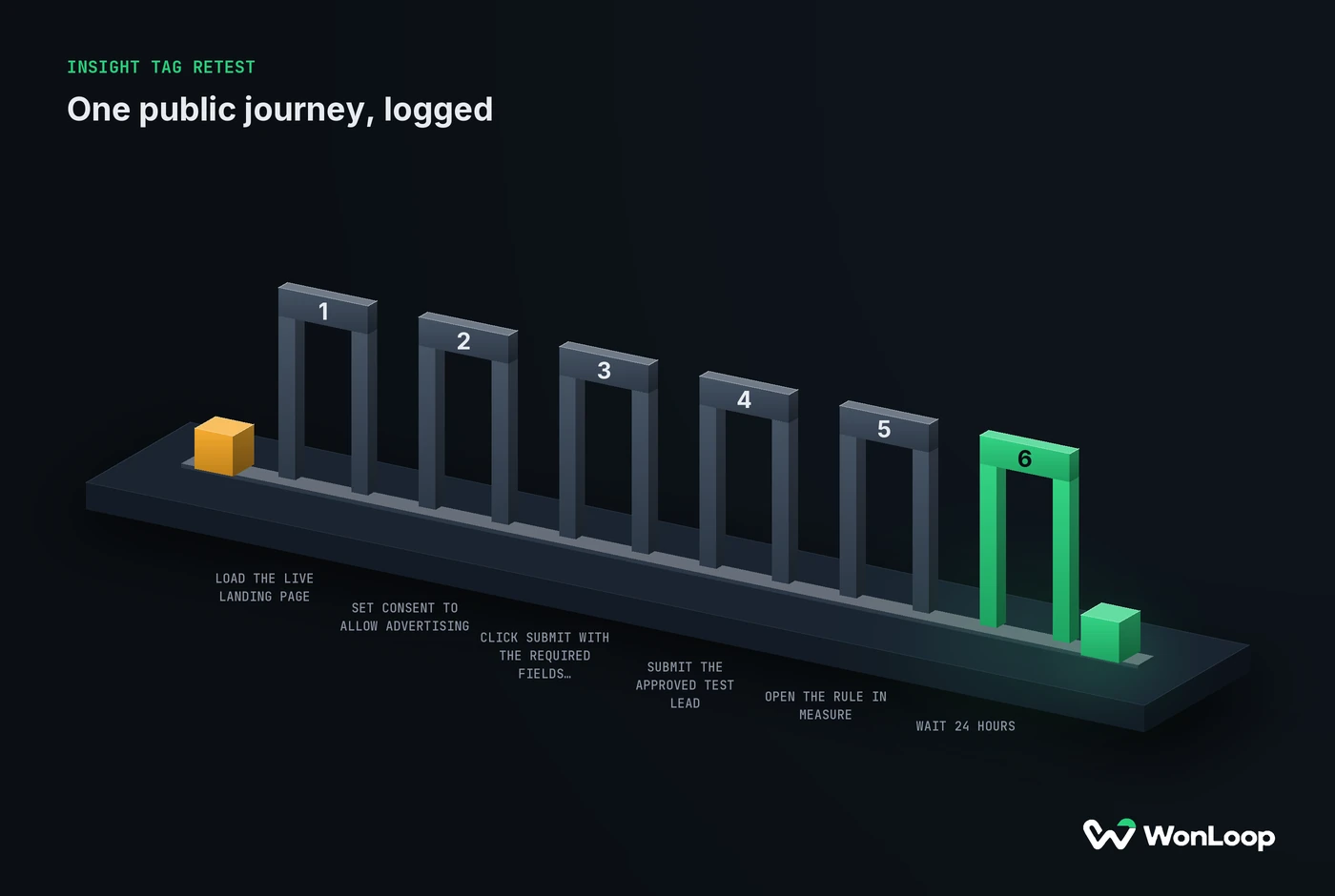
After the fix goes live, run the whole public journey again. Include one action that should count and one that should not.
INSIGHT TAG RETEST
one public journey, logged
6 steps
Load the live landing page and read the GTM ID.
It matches the container you edited, at the version you published.
Set consent to allow advertising and write it down.
The Insight Tag request leaves the browser in Network.
Click Submit with the required fields empty.
No conversion request goes out.
Submit the approved test lead.
One request carries the conversion ID from Campaign Manager.
Open the rule in Measure, then Conversion tracking.
The campaigns you run are listed under it.
Wait 24 hours, then read the status.
Active proves receipt. A direct visit still earns no ad credit.
LinkedIn says Insight Tag status can take up to 24 hours to update after a visit. Log the test time and wait that long before you read a stale status as a failure. Resubmitting the form while you wait only fills your CRM with junk.
Use this table to read what you see during the retest:
| What you see | What it proves | Check next |
|---|---|---|
| Tag fires in GTM Preview | Your preview session ran the tag | The published container on the public page |
| Request blocked in Network | That browser stopped the send | Consent state, blockers, security policy |
| Empty form fires a conversion | The trigger is the click, not the success | The form’s success signal |
| Valid lead, no request | The action never sent | Trigger, conversion ID, app events |
| Request sent, report empty | The browser did its job | Rule, campaign list, window, 24-hour delay |
| Status reads Unverified | No site activity seen for that rule | Partner ID and which account the tag reports to |
The finished record holds the page URL, container version, consent state, action, conversion ID, the request you saw, and the status on LinkedIn’s side. Mark anything you could not observe as unverified. This is the same evidence a conversion tracking audit baseline starts from. A screenshot that says Active proves the status. It does not prove the journey.
The bottom line
A LinkedIn Insight Tag not tracking conversions is rarely a tag problem. It is usually the wrong container, a decline on the consent banner, a trigger on the click instead of the success, a rule the campaign was never attached to, or two senders with different event IDs. Check them in that order and stop at the first one that fails. A second tag skips all five checks.
That order is the job of WonLoop’s LinkedIn Signal Repair: find the broken step, fix it, and hand back a retest record that shows the right action reaching the right rule. A green light on the tag is not the deliverable.